
This topic provides field-by-field information on every form used in setting up entities within Aptify. It is intended to be used as a reference for the various fields on these forms.
This topic documents the following forms in alphabetical order. Within each form, tabs are also described in alphabetical order.
- About the Entities Form
- About the Entity Actions Form
- About the Entity Attributes Form
- About the Entity Constraints Form
- About the Entity Database Objects Form
- About the Entity Attachment Permission Form
- About the Entity Full Text Filters Form
- About the Entity Plug In Types Form
- About the Entity Permissions Form
- About the Field Level Security Permissions Form
- About the Fields Form
- About the Filter Relationships Form
- About the Indexes Form
- About the Plug Ins Form
- About the Required Entities Form
- About the Required Objects Form
- About the Reports Form
- About the Values Form
About the Entities Form
The Entities form consists of many sections. The main section (the top panel of the Entity form) handles the identification, the database location, and the base view assignment of an entity.
Top Panel
Name (Required)
The name of the entity is required.
Display Name (Required)
The display name is the name that is displayed within the Aptify graphical user interface.
Display Culture String
If you want to localize this entity name on a user-by-user basis (based on a user's assigned Culture), specify a Culture Strings record in this field. See Using Localization Administration for details.
BaseDSN (Required)
The base DSN is used to access the database server components of the entity.
Base Database (Required)
The base database is the name of the SQL Server database that houses the entity.
Base Table (Required)
The base table is the name of the SQL Server table that stores entity records. To add, edit, or delete additional base tables, click the plus sign or check mark icon to the right of this field.
Base View
The base view is the default view used to view entity records. Note that for new entities, this field is a text box. It becomes a link box that links to a corresponding Database Objects record after you save the Entities record.
In Aptify, multiple base views can be created for an entity. See Using Multiple Base Views for more information.
Generate Table
This option indicates that the Aptify automatically generates the SQL table, views, and stored procedures upon the initial creation of an entity. This option greatly reduces the amount of manual work that must be done when creating or modifying entity field information. This option should be cleared for virtual entities.
Is Installed
Selecting this option specifies that the entity is considered installed and available for use to those who have sufficient permissions.
Is Virtual Entity
This option indicates that the entity is a virtual entity. See Using Virtual Entity Wizard for more information on virtual entities.
When the Virtual Entity wizard is used to create a virtual entity record, this option is automatically selected.
Applications Tab
The Applications tab determines under which Application headings the entity appears. In the following example, the Dashboards entity is a service under the Aptify Framework Administration application heading.
To add an entity to an application, select the option to the left of the application name. An entity can appear under more than one Application heading.
Note that this tab is not available for sub-types.
Attachments Tab
The Attachments tab lists any files relevant to the Entities record. The tab becomes available when the record is initially saved.
Configuration Tab
The Configuration tab handles most of the intricate technical details about an Aptify entity. From this area of the Entities service, an administrator can configure an entity's operating behavior, assign entity dependency, and assign entity dependent Aptify wizards. The Configuration tab contains the following sub-tabs: Actions, Attributes, Filter Relations, Full Text Index Filters, General, Required Entities, and Required Objects.
Note that not all options on the Configuration tab are available for sub-types.
Actions Sub-Tab
The Actions sub-tab lists all associated Entity Actions sub-type records for the entity. An action corresponds to a wizard. See About the Entity Actions Form.
Attributes Sub-Tab
The Attributes sub-tab lists all Entity Attributes sub-type records for the entity. Administrators can use attributes to enable additional functionality in an entity. See About the Entity Attributes Form.
Filter Relationships Sub-Tab
The Filter Relationships sub-tab on the Configuration tab stores all associations between this entity and other entities that are set up for viewing purposes. These relationships allow a view on the current entity to be filtered using data in another entity. See About the Filter Relationships Form.
General Sub-Tab
The General sub-tab on the Configuration tab provides an interface for configuring entity behavior, such as whether Record History, Require Comments for each Save, and Recordset Query Limitation are enabled or disabled.
File Group
This field specifies the filegroup for the entity's base table. See Creating Multiple Filegroups for more information about using multiple file groups.
Text/Image File Group
This field specifies the filegroup in which the entity's large text and image are managed. If the entity contains a field or fields with the SQL Data Type of ncharvar(max), varchar(max), ntext, or text, this field is enabled and a filegroup can be selected to manage text and image fields. See Creating Multiple Filegroups for more information about using additional filegroups.
Default View Type
This field specifies the type of view that loads by default when creating new views in this entity. This setting does not prevent a user from selecting a different view type within the Create View dialog. The list of available View Types is based on the records in the View Types entity. With Aptify, there are six View Types available: List, Chart, Calendar, Pivot Table, Map, and Gantt. If this field is blank, the system uses the List view type as the default.
See Using the Viewing System for information on how to create views.
Default Preview Pane
This field links to the Form Template service and identifies the form template that appears as the preview pane for list views of this entity's records. See Specifying a Default List View Preview Pane for information on this feature.
Order By
If the entity is a sub-type entity, this field specifies the order in which records are sorted within a sub-type grid. Note that this field is not visible for top-level entities. See Defining the Sort Order for Sub-Type Listings for more details.
Track Versions
If this option is selected, record history for this entity's records is enabled. See Enabling and Disabling Record History for details.
Require Comments for Each Save
If this option is selected, users are required to enter comments for each record in this entity before allowing the record to be saved. See Requiring Comments on Save for details.
Enable Recordset Query Limitation
If this option is selected, Aptify limits the number of records that can appear in a view based on the user's permissions. See Managing the Recordset Query Limitation for details.
Allow Record History Restore
If this option is selected, users are allowed to restore previous versions of a record. Note that the Allow Record History Restore option is not applicable when the Track Versions option is clear. See Enabling and Disabling Record History for details.
Enable Viewer
This functionality is not currently implemented. If this option is selected, the viewer form is displayed to the user.
Include in Setup Checklist
This option indicates that the current entity is to be included for build installations and is used for Aptify internal build development only.
Enable Most Recently Used
When selected, this entity's records can appear in the Most Recently Used record list within a dashboard. See Configuring the Most Recently Used Records Component for information on the Most Recently Used feature.
Customize Required Field Font Name and Color
When selected, additional fields display that let you specify the font and color to use for required fields in this entity. The selections here override the value specified at the global level (in Startup.exe.config). See Configuring the Appearance of Required Fields for details.
Required Entities Sub-Tab
The Required Entities sub-tab on the Configuration tab lists all Required Entities records, showing all of the dependent entities for the current entity. The items on this tab are a list of all required entity dependencies needed in order for the selected main entity to function properly. For example, the default Persons entity is dependent upon the Companies entity because company information is also stored within a Persons record. (The CompanyID field within the Persons record links to the ID field within the Companies record.)
The concept of entity dependency also affects how entities are packed and unpacked for future importing and exporting of entities. Since dependent entities share common fields with each other, the layout of the database schema on the backend aspect of Aptify forces entity integrity even if no records exist for any of the services. See Using the Entity Packing and Unpacking Wizards for more information on the Entity Packer.
Required Objects Sub-Tab
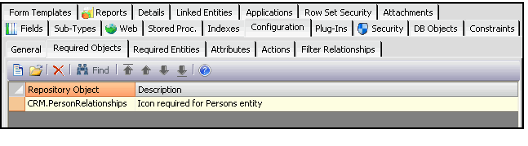
The Required Objects sub-tab on the Configuration tab is used to add or delete Aptify repository objects that are required for the current entity. New Aptify repository objects are created in the Aptify system for implementation of custom wizards and entity processing. Note that an administrator adds new repository objects from the Object Repository Administration application (described in Object Repository).
The Required Objects sub-tab tracks all Aptify repository objects that are used in conjunction with the current entity.
Constraints Tab
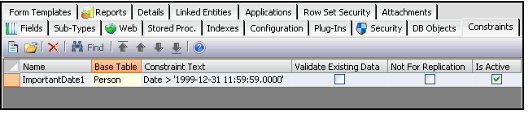
The Constraints tab lists any table-level Check Constraints that an administrator has added for the entity. The constraints on this tab drive down to the database level and ensure consistency for records in the entity's database table. See About the Entity Constraints Form for more information.
DB Objects Tab
All views and stored procedures that are used within Aptify exist as Database Objects. From the DB Objects tab in the Entities service, an administrator can link Database Objects records with an entity. Note that although the Stored Procedures tab on the Entities record lists only seven stored procedures for an entity, the DB Objects tab allows for any number of views, stored procedures, and triggers to be related to an entity.
See Creating Database Objects for more information.
Details Tab
The Details tab holds descriptive information about the current entity.
Description
The Description field stores a description of the entity, such as its purpose within the system.
Plural Name
This is a legacy field that is no longer used by the Aptify system. It is retained for backwards compatibility purposes.
Icon
This field identifies the icon that is displayed to next to the service in Aptify. Note that icons are stored in the Object Repository, so this field specifies the icon's location within the repository.
Icon Large
This field identifies the icon that is displayed in the Shortcut Bar for shortcuts associated with this entity. Note that icons are stored in the Object Repository, so this field specifies the icon's location within the repository.
Replication Support
This field identifies the type of replication that this entity supports. The options are None, Snapshot, Merge, and Snapshot and Merge. This field is reserved for future use.
Help Text
This field is reserved for future use.
Help Text Culture String
This field is reserved for future use.
Help URL
This field specifies an HTML file in the Help Object that corresponds to information about this entity. If a user clicks the Help button on this entity's form, Aptify will open the Help Object at the specified location.
For example, when a user clicks the Help button on a Lists record, the Aptify online help window appears and displays the Lists topic.
Help Object
This field specifies the Object Repository location of a Microsoft CHM Help file that contains information about this entity. This field is used in conjunction with Help URL to specify a particular page in an online help file that should open when a user clicks the Help button on this entity's form.
Aptify has configured the Help Object and Help URL for the applications provided with the standard product, as applicable. To add online help for new entities, an organization needs to:
- Write help documentation for the application and compile it into a Microsoft HTML (CHM) file.
- Add the CHM file to the Object Repository.
- Specify the Object Repository location of the CHM file in the Help Object field.
Specify the name of the HTML page (included within the CHM file) that contains information about the specified entity.
Fields Tab
The Fields tab within the Entity record handles the automation of the SQL Server table schema for an Aptify service.
The creation of entity fields and attributes occur from the Fields tab within an Entities form. From the Fields tab, an administrator can create fields for an entity.
The Fields tab is used to:
- Create new fields to appear on system-generated forms.
- Display and modify existing fields.
- Set the sort order for how fields appear on system-generated forms.
The Fields tab displays all of the data elements that must be stored for the entity. Within the tab is a sub-type view that shows all of the Fields records currently associated with the entity, along with the current state of each given field. See About the Fields Form for more information.
Form Templates Tab
The Form Templates tab displays a list view of the Form Templates records associated with this entity. This includes generated, non-generated, and user-level form templates.
Indexes Tab
In the Entities service, single-field indexes are created through the Fields tab. However, to create composite indexes built on two or more fields, administrators add index entries to the Indexes tab. This tab lists all Indexes records associated with the entity. See About the Indexes Form.
Note that this tab is not available for sub-types.
Linked Entities Tab
The Linked Entities tab shows a view of all other top-level entities that tie to the current entity. Each of these entities has a field that links to the current entity. For example, the Dashboard Areas record appears in the Dashboards entity's Linked Entities tab, since Dashboard Areas has a DashboardID field that links to the Dashboards entity.
Like sub-types, the linkage of top-level entities helps normalize the storage of data while balancing the performance of the Aptify for the common end user. From the Linked Entities tab, an administrator can browse through a list of entities that link from the current entity record.
Note that this tab is not available for sub-types.
Plug-Ins Tab
An organization can configure an entity to use a specially designed form or functionality. To implement this specialized behavior, a developer creates a .NET assembly that defines the entity's extended functionality. These assemblies are then stored in the Object Repository and are added to the entity on the Plug-Ins tab. The entity uses the plug-ins specified on this tab to override standard functionality with the functionality specified in one or more plug-ins.
Typical plug-ins include a specialized form (Viewer plug-in), business logic (Entity plug-in), duplicate record checking process (Duplicate Check type), context menu (Extension plug-in), record verification process (Verification plug-in), Find dialog (Find plug-in), and merging logic (Merge plug-in).
See About the Plug Ins Form for more information.
Reports Tab
This tab lists all Reports associated with an entity. An administrator can add new reports to an entity's Report wizard from this tab. Note that reports are stored in the Object Repository, records in the Reports tab point to the report's file in the repository. See About the Reports Form.
Note that this tab is not available for sub-types.
Row Set Security Tab
Row Set Security prevents users from accessing specific data records within an entity by specifying a WHERE clause that is appended to an entity's base view.
Note that the Row Set Security configuration option is only applicable to entities that have a generated base view.
See Managing Row Set Security for details.
Security Tab
Aptify security is administered from the Security tab of the entities form. This tab consists of five other tabs: the Group Permissions tab, the User Permissions tab, the Group Attachment Permissions tab, the User Attachment Permissions tab, and Options.
See Granting Entity Permissions to Groups and Granting Entity Permissions to Users for more information on assigning user and group permissions to an entity. See Modifying Security Settings for Attachments for information on defining attachment permissions at the entity level. See Modifying Security Settings for In Place Editing for information on the In Place Editing option and see Managing Field Level Security Settings for information on the Field Level Security options.
Stored Procedures Tab
Stored procedures are the procedural processes that Aptify uses to conduct routine database transactions onto a SQL Server. From the Stored Procedures tab, these processes are linked to existing Database
Object records. Database Objects in Aptify represent individual views and stored procedures within the SQL Server. See Creating Database Objects for more information.
During the creation of an Aptify top-level entity, the following stored procedures are automatically generated:
- spGet[EntityName]
- For example, spGetDashboards
- For example, spGetDashboards
- spCreate[EntityName]
- For example, spCreateDashboards
- For example, spCreateDashboards
- spUpdate[EntityName]
- For example, spUpdateDashboards
- For example, spUpdateDashboards
- spDelete[EntityName]
- For example, spDeleteDashboards
These four stored procedures are used to retrieve entity record information, create an entity record, update an entity record, or delete an entity record. For custom implementations, developer-defined stored procedures are used instead of the default stored procedures mentioned above.
spGet Record (Required)
This stored procedure is used to retrieve information from an individual record.
spGetRelatedRecords
This stored procedure is used to retrieve sub-type records related to the same top-level record.
This field is available for sub-type entities only.
spCreate Record (Required)
This stored procedure is used to create a new entity record.
spUpdate Record (Required)
This stored procedure is used to update/edit an existing entity record. This stored procedure is not available for sub-type entities, and on sub-type entity records, this field is read-only.
spDelete Record (Required)
This stored procedure is used to delete an entity record.
spDeleteRelatedRecords
This stored procedure is used to delete the sub-type records related to the same top-level record.
This field is available for sub-type entities only.
spAddtoList
The Aptify framework contains default logic that is used to add an entity record to a list. The default logic is used for most entities, but it is also possible to configure the behavior by specifying a custom stored procedure. The custom Add To List stored procedure is used to either modify or supplement the default logic used to add an entity record to a list.
This field is not available for sub-type entities.
spRelinkDependants
The Aptify Merging Tool automatically relinks dependencies between records. The default logic is suitable in the vast majority of situations, but occasionally it may be necessary to specify a custom stored procedure that either modifies or supplements the default logic. In such cases, a custom Relink Dependants stored procedure may be specified.
This field is not available for sub-type entities.
spGetDependants
The Aptify framework allows system architects to explicitly link entity fields to fields in related entities. For example, the CompanyID field in the Persons entity links to the ID field of the Companies entity. This link establishes a dependency between the Companies and Persons entities.
Aptify automatically generates an spGetDependant stored procedure when a new top level entity is saved to check for dependent links to other records. Aptify also automatically regenerates an entity's spGetDependant stored procedure under the following conditions:
- When an existing Entities record is saved with a change that causes entity regeneration, the system regenerates that entity's spGetDependant stored procedure.
- When a new Entities record is saved and the new entity links to an existing entity, the system also regenerates the existing Entities record's spGetDependant stored procedure so it searches for dependencies with the new entity.
- When an existing Entities record that links to another entity is saved with a change that causes entity regeneration, the system also regenerates the linked entity's spGetDependant stored procedure.
The Aptify Merge functionality allows a user to merge two or more records in the same entity. Dependencies are automatically resolved using the default logic in the system-generated spGetDependants stored procedure that is sufficient in the vast majority of situations. However, if the situation requires different logic, a client-specific Get Dependants stored procedure may be specified. The client-specific stored procedure either modifies or supplements the default logic used to retrieve dependencies for a given record.
This field is not available for sub-type entities.
Sub-Types Tab
Sub-types allow the user to create one-to-many relationships with items that are related to an individual record from the parent entity. Sub-types may be viewed, created, and edited from the Sub-Types tab within an Entity record.
New entities created from the Sub-Types tab of the Entity service use the same form and process as normal entity creation. What differentiates sub-type entities from their parent entities is simply the information in the title bar. In the example below, the title bar indicates that this entity is a sub-type of the Culture Strings entity.
See Creating Multiple Filegroups for more information on sub-types.
Web Tab
The Web tab on an Entities record is reserved for future use.
It allows an entity to be set up with the Aptify WebAccess application. The Aptify WebAccess application is Aptify's browser-based front end interface. Note that WebAccess functionality is not available in the initial Aptify release.
In order for an entity's record to be manipulated from WebAccess, the following fields must be populated with the appropriate HTML or ASP URL addresses.
View Page
The URL of the web page that provides a view of the current entity.
List Page
The URL of the web page that provides a corresponding list to the current entity.
Create Page
The URL of the web page that allows the creation of an entity's record.
Edit Page
The URL of the web page that allows the editing/updating of an existing entity record.
Delete Page
The URL of the web page that allows the deletion of an existing entity record.
About the Entity Actions Form
Entity actions are special objects that interact with an entity, such as custom wizards. Each Aptify wizard has an Actions record in the associated service's Entities record.
When an administrator adds a new action to an entity, an icon appears on the service's View toolbar so users can launch the action.
Actions records may only be created through the Actions sub-tab on the Configuration tab of an Entities record.
General Tab
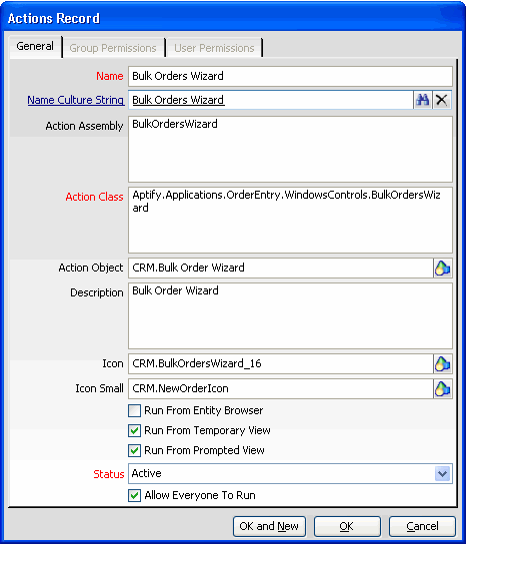
Name (Required)
Action Name is the name of the action/wizard.
Name Culture String (Required)
This field links to the Culture Strings service. Enter a culture string to use as the display name of the field in the Name Culture String field if you want to localize this field name on a user-by-user basis (based on a user's assigned Culture). See Using Localization Administration for details.
Action Assembly
Action Assembly is the assembly name for the action/wizard object.
ActionClass (Required)
Action Class is the class for the action/wizard object.
ActionObject (Required)
Action Object is the object in the Object Repository that defines the action/wizard.
Description
The Description field holds a description of the action/wizard.
Icon
This field specifies the location in the Object Repository of the icon associated with the action/wizard (for example, the icon that appears in the view toolbar to represent this action/wizard). If not defined, the action/wizard uses the default wizard icon.
Icon Small
This field is reserved for future use.
Run From Entity Browser
If this option is selected, the action/wizard icon is displayed on the Display Window toolbar when the service is selected.
Run From Temporary View
If this option is selected, the action/wizard icon is displayed in the toolbar for temporary views. A temporary view is an Entity List View that is populated by a SQL statement rather than by a View ID. Temporary views typically appear in dashboards or as a tab on a form.
Run From Prompt View
If this option is selected, the action/wizard icon is displayed in the view toolbar for a prompt list view (see Using List Views for more information on Views).
Status (Required)
The action/wizard's current status (Active or Inactive). Users cannot access an inactive action/wizard.
Allow Everyone to Run
If this option is selected, permission to run the action/wizard is granted to all users and all groups, and the Group Permissions and User Permissions tabs are disabled.
Group Permissions Tab
When Allow Everyone to Run is cleared, this tab identifies the Groups whose members have access to run this wizard.
User Permissions Tab
When Allow Everyone to Run is cleared, this tab identifies individual users who have access to run this wizard.
About the Entity Attributes Form
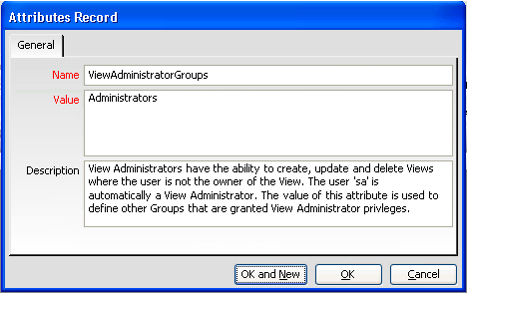
Entity attributes are used within the Aptify framework as a way of storing values that may be configured or changed by the administrator. For example, the ZipCodes entity includes five attributes by default, which specify how the ZIP Code look-up functionality behaves. Also, see Enabling the FindRequiresFilter Attribute for another example of an entity attribute.
Entity Attributes records may only be created from the Attributes sub-tab of the Configuration tab on an Entities record.
Name (Required)
This is the name of the entity attribute.
Value (Required)
The Value field stores the value of the entity attribute.
Description
A description of the entity attribute is entered into the Description field.
About the Entity Constraints Form
An administrator can create a Check Constraint for any field in the table (but not for any virtual fields, such as Calculated or Computed fields; see Virtual Field Tab for details). A Check Constraint is a table-level constraint that enforces consistency for records at the database table.
Unlike field validation that occurs within the user interface, a Check Constraint prevents a record from being saved within the database if a field's value does not correspond to a value or range specified by constraint.
The Constraints form can be opened from the Constraints tab in an Entity record.
The Constraints form has the following fields:
Name (Required)
This is the name of the constraint. The name cannot contain spaces. Note that this field cannot be modified for an existing constraint.
Base Table (Required)
The table to which the system should add this constraint. This must be the table that contains the field or fields referenced in the Constraint Text.
Constraint Text (Required)
The SQL text that defines the constraint. Note that this field cannot be modified for an existing constraint.
Validate Existing Data (Required)
When selected, all existing data is validated against the constraint before the constraint is added to the table. Note that this field cannot be modified for an existing constraint.
Not For Replication (Required)
When selected, this constraint is not enforced during replication. Note that this field cannot be modified for an existing constraint.
Is Active (Required)
This field is unavailable for new constraints. A constraint is automatically marked as Active when the entity is saved. This is the only field that can be modified for an existing Constraints record; an administrator can select or clear this option to enable or disable a constraint, as necessary.
Failure Message (Required)
This field specifies the error message that displays to the user when a save operation fails because the record does not comply with this constraint. This field is only valid if Validate In GE is selected. In other words, the specified failure message only appears if the constraint fails at the GE level.
Notes Concerning Entity Constraints
- Constraints can be enabled or disabled, but once created, it cannot be modified. To change an existing constraint, delete it and then add a new one.
- When a user creates a constraint and then saves the Entities record, Aptify creates a Check Constraint in the database table. This constraint also becomes visible within the table's properties in Microsoft SQL Server Management Studio.
- While a Check Constraint ensures integrity at the database level, validating data against a constraint requires a trip to the database. A developer or administrator can use a combination of field-level validation (as specified on a field's Validation tab) and entity constraints to ensure database consistency while attempting to catch user validation errors at the user interface before accessing the database.
About the Entity Database Objects Form
Database objects are views or stored procedures within the Aptify system which may be linked to an entity to provide additional functionality.
Entity Database Objects records may only be created from the DB Objects tab of an Entities record.
DBObjectName (Required)
This link box displays the name of the linked Database Object.
Usage
The usage of the database object. This field is for informational purposes only. Available values are Custom, Administration, and Recompile Only. However, the user may enter any other value necessary for the organization's business logic.
Description
The description of the database object is entered into the Description field.
About the Entity Attachment Permission Form
Attachment Permissions records detail the permission set for users and/or groups to create or modify the attachments linked to an entity's records. All of the permissions that are available for an Aptify group are also available for an Aptify user. This allows the format of the Entity Attachment Permissions record to be the same for both security levels.
Attachment Permissions records may only be created from the Group Attachment Permissions or User Attachments Permissions sub-tabs of the Security tab of an Entities record (note these tabs are only visible when the Use Specific Attachment Permissions option is selected).
See Attachment Security for more information.
Group/User
The group or user associated with the permissions. The label on this field is dependent on the sub-tab from which the form was opened.
Read
Selecting this option gives read permissions for attachments to the selected group/user.
Create
Selecting this option gives create permissions for attachments to the selected group/user.
Edit
Selecting this option gives edit permissions for attachments to the selected group/user.
Delete
Selecting this option gives delete permissions for attachments to the selected group/user.
About the Entity Full Text Filters Form
This service defines which full text indexes are configured to be used with this entity.
General Tab
Full Text Index (Required)
The name of the full text index.
Display name (Required)
The name that is displayed when using the Find dialog or filtering a view for the particular entity.
Display Name Culture String
If you want to localize the name of the full text filter on a user-by-user basis (based on a user's assigned Culture), specify a Culture Strings record in this field. See Working with Culture Strings for details.
Description Tab
Description
This is the description that is displayed in the Description field when using the Find dialog or filtering a view for the particular entity.
Description Culture String
If you want to localize the description of the full text filter on a user-by-user basis (based on a user's assigned Culture), specify a Culture Strings record in this field. See Working with Culture Strings for details.
Related Entity Fields Tab
This tab stores the list of related entity fields in which users are able to search separated by commas.
Search Fields Tab
This tab stores the list of fields that you want users to be able to search within the index separated by commas.
About the Entity Plug In Types Form
This service stores the list of available plug-in types that populate the Types data combo field on an Entity Plug Ins form.
See Adding Plug-Ins to an Entity for more information on plug-ins.
Attachments Tab
The Attachments tab lists any files relevant to the Entity Plug In Types record.
General Tab
Name
The name of the plug-in type.
Description
A description of the plug-in type.
Entity
The entity to which this plug-in type applies. When an entity is specified, this plug-in type will only appear in Plug Ins records opened from within this particular entity. If this field is blank, the plug-in type is global and is available for any entity.
About the Entity Permissions Form
Permissions records detail the permission set for users and/or groups to create or modify an entity's records. All of the permissions that are available for an Aptify group are also available for an Aptify user. This allows the format of the Entity Permissions record to be the same for both security levels.
Permissions records may only be created from the Group Permissions or User Permissions sub-tabs of the Security Tab of an Entities record. See Granting Entity Permissions to Groups and Granting Entity Permissions to Users for more information.
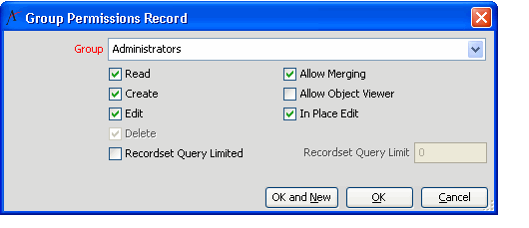
Group ID/User
The group or user associated with the permissions. The label on this field is dependent on the sub-tab from which the form was opened.
Read
Selecting this option gives read permissions to the selected group/user.
Create
Selecting this option gives create permissions to the selected group/user.
Edit
Selecting this option gives edit permissions to the selected group/user.
Delete
Selecting this option gives delete permissions to the selected group/user.
Allow Merging
Selecting this option grants the selected group/user record merging permissions. If Allow Merging is selected, Delete must be selected as well. To enforce this dependency, when the user selects Allow Merging, the Delete option is automatically selected and marked as a read-only check box.
Allow Object Viewer
If this option is selected, the group/user is given permissions to open record information for this entity in the object viewer.
In Place Edit
If this option is selected, group members/user can edit record data directly within a list view without opening a record's form. Note that this option is only available if the Edit option is selected. Also, this assumes that the Allow In Place Editing option is checked and In Place Edit Security is set to Specified Users/Groups on the entity's Security > Options tab. See Modifying Security Settings for In Place Editing for details.
Recordset Query Limit
If this option is selected, Aptify limits the number of records that can appear in a view to the number specified for the group or user. This assumes that the Enable Recordset Query Limitation option is checked on the entity's Configuration tab. See Managing the Recordset Query Limitation for details.
About the Field Level Security Permissions Form
User Permissions and Group Permissions records are used to define field level security for users and groups. These records are only available from the Security tab of an entity Fields record.
Group/User (Required)
The Group or User field displays the name of the group granted these permissions for the entity field. This field links to the Groups or Users service.
Read
If this option is selected, the user or the users in the group specified have Read permission for the entity field.
Edit
If this option is selected, the user or the users in the group specified have Edit permission for the entity field. This option is only applicable if the Read option is selected.
In Place Edit
If this option is selected, the user or the users in the group specified can edit this field in a view using In Place Editing. This option is only applicable when the Edit option is selected and when In Place Editing is enabled at the entity and the field level.
Comments
The Comments field contains any additional details relevant to the Permissions record.
About the Fields Form
A Fields record consists of all of the attributes of a single field within an Aptify entity. Fields records may only be created from the Fields tab on an Entities record.
Top Panel
The main section of the Fields record provides the identification and any foreign key linkage to another entity or sub-entity.
Name (Required)
The name of the field. This field becomes read-only and cannot be changed after a Fields record is saved for the first time. Note that two fields within the same entity cannot have the same field Name. Do not use spaces or dashes in the field name.
Base Table
The table in which this field resides. This field is grayed out if your entity only has one base table.
Display Name
The name of the field as it shows within the Aptify graphical user interface.
Display Culture String
Enter a culture string to use as the display name of the field in the Display Culture String field if you want to localize this field name on a user-by-user basis (based on a user's assigned Culture). See Using Localization Administration for details.
Linked Entity
The entity to which the current field links. Used when the current field acts as a foreign key to another entity. When used in conjunction with Linked Field, this creates a link box field.
Linked Entity Field
The field in the Linked Entity to which the current field links. Used when the current field acts as a foreign key to another entity. The drop-down list only displays the fields in the Linked Entity that are required in that entity and are either a primary or unique key for the linked entity. When used in conjunction with Linked Entity, this creates a link box field. In general, the Linked Field is the ID field of the Linked Entity.
Link Type
This field is only valid if a value is selected for the Linked Entity and Linked Fields fields. This option specifies the type of foreign key to create: Standard or Embedded. Standard creates a foreign key relationship between the current entity and the entity specified in the Linked Entity field. This relationship is stored in the current entity's table and corresponds to a standard link box on the entity's form. Most foreign keys are Standard. Prior to Aptify 4.0, all link types in the system were Standard.
Embedded foreign keys, which were added in Aptify 4.0, act as a part of the current entity's base table from a user perspective. For example, although Addresses and Phone Numbers have separate entities in Aptify, fields from the Addresses and Phone Numbers entities appear as if they are part of the Persons entity when a user opens a Persons form.
Also, developers will find that working with embedded links will reduce code complexity; Aptify creates an embedded Generic Entity (GE) object within the current entity that simplifies set and get operations on records in linked entities. See Creating Embedded Objects for details.
Mode
This field appears when you set Link Type to Embedded. It specifies whether or not the embedded link in this entity is also shared by another entity. See Designing and Creating Shared Embedded Objects for information on Shared Embedded objects. This attribute supports the following options:
- None: There is a one-to-one relationship between the embedded object and the container entity. In other words, the embedded object is not shared with any record in another entity. In Aptify, an entity's embedded ScriptID link to the Scripts entity would have a Mode of None. You would not expect the same script to be shared among multiple records across multiple entities.
- Dynamic: The embedded object is shared among multiple records in multiple entities. Each dynamic embedded record has an Owner, which identifies the record that created it. When the embedded object is updated at the owner record, all other records that share the same embedded object are also updated automatically. For example, a top-level company owns an address that also applies to subsidiary companies and persons at those companies. When set to Dynamic, the Dynamic Sharing tab appears on the Fields record.
- Static: This option is used in conjunction with the Dynamic model to identify shared non-owner links that should not be updated automatically when the owner modifies the embedded record. For example, an Order's Ship To address shares the Person/Company address at the time that the Order is created but subsequent updates should not be applied to this record in the future.
Dynamic Sharing Tab
This tab is only visible when Link Type is set to Embedded and Mode is set to Dynamic.
Dynamic Flowdown Proc
This link box specifies the stored procedure which defines the logic for updating the dynamic non-owner shared links specified in the Dynamic Sharing sub-type listing. See Designing and Creating Shared Embedded Objects for more information.
Dynamic Sharing Relationships Sub-Type Area
This sub-type control stores the list of entities and their embedded links that can share an embedded record with this owner entity as a non-owner. Each sub-type record stores the Related Entity name, the Related Entity Field (this is the embedded link in the Related Entity that links to the shared embedded object), and a Dynamic Flowdown Filter (which you can use to filter the set of records to which this shared embedded object relationship applies). See Designing and Creating Shared Embedded Objects for more information.
General Tab
The general tab of the Fields record allows the configuration of discrete database field type and size information. The values placed within this tab of the Fields record are automatically assigned to the supplied SQL Server's table schema. The General Tab also provides indirect linkage to other Aptify field types.
Base Field
Selection of a defined base field from the list defaults the rest of the field definition to the parameters defined for the base field. See Using Base Fields for more information.
SQL Data Type
The SQL Server data type defines the data type of the field in the underlying database table. Available options are:
- bigint
- bit
- char
- date
- datetime
- decimal
- float
- int
- money
- nchar
- ntext
- numeric
- nvarchar
- nvarchar(max)
- real
- smalldatetime
- smallint
- smallmoney
- text
- time
- tinyint
- uniqueidentifier
- varbinary
- varbinary(max)
- varchar
- varchar(max)
All of the string fields provided in the standard set of Aptify entities use unicode data types (the unicode data types are identified by the preceding n, such as nchar, ntext, and nvarchar).
Note that the text and ntext data types do not support sorting. The Allow Sorting option is disabled for these data types (and for any virtual field that corresponds to a ntext or text field). See Allow Sorting.
Allow Null
If this option is selected, the field may have a null value.
SQL Field Size
The SQL field size defines the size of the field. If a numeric or decimal data type is selected, the SQL Field Size is replaced by the SQL Field Precision and SQL Field Scale fields.
SQL Field Precision
The value in this field indicates the number of digits in a number.
This field is only applicable if a numeric or decimal data type is chosen in the SQL Data Type field.
SQL Field Scale
The value in this field indicates the number of digits to the right of the decimal point in a number.
This field is only applicable if a numeric or decimal data type is chosen in the SQL Data Type field.
Supports Multiple Currencies
This option is only available when the SQL Data Type is set to money or smallmoney. Select the option to indicate that this money field can be expressed in multiple currencies. After selecting this option, select a Currency Type Field, which is a linked field to the Currency Types entity's ID.
If you leave this option clear, this money field is currency agnostic (in other words, values in this field will not be treated as having a particular currency type).
Currency Type Field
This field displays the set of available CurrencyTypeID fields already configured for this entity and its parent entity (for sub-type entities). Therefore, you must add one or more CurrencyTypeID linked fields to the entity before adding any multi-currency money fields. When a user specifies a currency type on the entity's record, Aptify automatically knows that a value specified in this money field is expressed in the specified currency and also uses the appropriate currency symbol.
Width
This field defines the default width (in pixels) of the field's column within a list view. Aptify automatically sets the width value based on the selected SQL Data Type and SQL Field Size, but you can modify this setting as necessary.
Category
This attribute allows the field to be categorized. For generated forms, Aptify creates a tab on the form for each category in the Fields list. For example, if you specify Address in the Category field for a City field, the City field will appear under an Address tab on the entity's generated form. Also, if a multi-line text field is the only field in a particular category and the category value matches the field's name, Aptify creates a tab for that field which does not include a separate label caption. See Multi-Line Text Field.
Default Value
Default Value is the value of the field when an entity record is first created. If you do not specify a default value, the field will be blank for new records.
Extended Type
The Extended Type attribute allows the user to specify that a particular field is associated with special functionality. For example, if the current field is assigned the Email extended data type, then an email icon appears next to the field on the generated entity form. When a user clicks this icon, the system opens a blank email message. The Extended Type options are:
- Email: Fields with this extended type provide the functionality to automatically create a new email message. An email icon appears to the right of a field that uses this extended type. When the icon is clicked, Aptify opens a new mail message and inserts the email address contained in the field as the message's To field.
- Fax: This type specifies that the field contains a fax number.
- Phone: This type specifies that the field contains a phone number.
- Area Code: This type specifies that the field contains an area code.
- CountryCode: This type specifies that the field contains a country code.
-
WebURL: Fields with this extended type are created to hold URLs for web pages. The button to the right of these fields allows the user to go directly to the web page listed. Note that the specified URL must be in the proper format to successfully open a Web browser when this button is clicked (for example, the address should be in the format of http:
www.aptify.com or www.aptify.com).
- EXE: This type specifies that the field contains an executable file name.
- City: This type specifies that the field contains a city. This field may be automatically populated when a user enters a ZIP Code in a ZIP Code field in the same entity.
- State: This type specifies that the field contains a State. This field may be automatically populated when a user enters a ZIP Code in a ZIP Code field in the same entity.
- ZipCode: This type specifies that the field contains a ZIP Code. When a user enters a ZIP Code in a field of this type, the system automatically populates other address fields in the same entity.
- Country: This type specifies that the field contains a country. This field may be automatically populated when a user enters a ZIP Code in a ZIP Code field in the same entity.
- County: This type specifies that the field contains a county. This field may be automatically populated when a user enters a ZIP Code in a ZIP Code field in the same entity.
- USCongress: This type specifies that the field identifies an address's US Congressional district.
-
Repository Object: Fields defined with this extended type store the names of objects from the Object Repository. A button to the right of the field allows the user to select the object from the Object Repository.
-
File: Fields defined with the extended type of File include a page button that opens the Select File dialog, allowing the user to populate the field with the directory path of the selected file.
-
Folder: Fields defined with the extended type of Folder include a folder button that opens the Browse for Folder dialog, allowing the user to select a folder location on the network or location computer. A user can also create new folder from this dialog.
-
Password:Fields defined with the extended type of Password displays a series of asterisks on a form rather than plain text. This is designed to mask the password to prevent authorized access. Note that following when working with a password field:
- The Password extended type functionality is only applicable for a Text Field. If your field's size is greater than 255 characters, the Aptify Baseline Form Template Generator will create a multi-line text field that displays the field's contents in plain text. In this case, use the Visual Designer to remove the multi-line text field and replace it with a text field that uses the Password extended type. See Modifying Field Layout with the Visual Designer for information on the Visual Designer.
- Even though a Password field's value is masked on the form, the value will still show up as plain text within a view. Therefore, to adequately protect passwords, Aptify recommends that you encrypt any Password fields that you add to the system in addition to setting the Extended Type to Password. See Field Level Encryption for information on encrypting a field.
Par. Linked Value
When creating a sub-type entity, the system uses this attribute to link to the parent entity's ID field on the ParentID field of the sub-type. It can also be used for second-level sub-types to link back to the top-level entity. See the PersonID field in the PersonCompanyFunctions sub-type entity for an example. See Creating Multiple Filegroups for more information on sub-type entities. Finally, it is also used in some instances for top-level entities; see the OrderMeetingDetail top-level entity for an example.
Info Tab
The Info tab within the Fields record stores the field's description and the field's online help settings.
Description
The description of the field.
Help Text
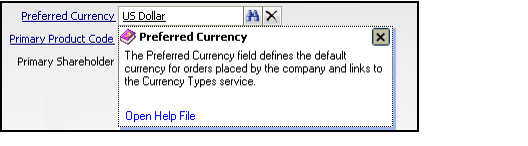
When a user places the cursor in this field and presses Shift+F1 (or if configured, simply hovers over the field), a tool tip window appears that displays information about this field.
When specified, the contents of this Help Text field appear in the tool tip. If not specified, the contents of the field's Description appear in the tool tip window, if different from the field's Display Name. If the Description is blank or matches the Display Name, or if the Help Text is blank, the tool tip indicates that no specific help is available for the field.
Help Text Culture String
If your organization has configured Aptify to display localized content to users, this field specifies a Culture Strings record that provides localized versions of the Help Text content. See Using Localization Administration for more information.
Help URL
The Help URL specifies an HTML file in the Help Object that contains information about this field or its entity. Help URL is used in conjunction with Help Object to specify a particular page in an online help file that should open when a user presses the Open Help File link in a tool tip window.
Help Object
This field specifies the Object Repository location of a Microsoft CHM Help file that contains information about this field or its entity. Help Object is used in conjunction with Help URL to specify a particular page in an online help file that should open when a user presses the Open Help File link in a tool tip window.
If Help URL and Help Object are blank, Aptify opens the help page specified at the entity level. If not specified at the entity level, Aptify opens the online help file at the default introduction page.
Options Tab
The Options tab of the Fields record allows an administrator or developer to configure special Aptify Field attributes onto a field.
Updateable
Used to determine whether the user is allowed to change the value of the field (in other words, this field specifies whether or not the field can be updated).
Note that fields that have this option is cleared and do not appear on generated form templates.
In Table
If a field is marked as In Table, the data is stored within the base table defined for the entity.
If a field is not marked as In Table, the administrator needs to provide an alternate source for the information in the entity base view. Fields that are not In Table are often referred to as virtual fields because they do not physically exist within the base table of the entity.
When a user clears the option from the In Table option, a Virtual Field tab appears on the Fields form. See Virtual Field Tab.
Is System
This field specifies whether a particular field is considered to be integral to the functionality of the Aptify Framework. In most cases, system fields are not found in entities related to business applications.
Is Name Field
Only one field in the entity may be designated as the Is Name field. The administrator determines which field in the entity best characterizes the record and designate the field as Is Name. The system uses this field to represent the record in graphical user elements, such as the link box control. Note that when you select the Is Name Field option, the system automatically clears the Allow Null option on the General tab and selects the Is Required option on the Validation tab. In general, Is Name fields are required and do not support Null values.
Show In Find
If the Show In Find attribute is selected, the field appears in the display results when a user clicks the Find button on a related record and searches for records within the entity.
Default In View
If the Default In View attribute is selected, the field automatically appears in the included fields list for all views that are created for the entity.
Is Sequence
Selecting the Is Sequence attribute specifies that this field is a Sequence field, which is used to sort records in an order other than by primary key. Prior to version 4.0, a Sequence field was required for sub-type entities.
Unique
Selecting the Unique attribute prevents the entry of any other records with the same value for this field.
Indexed
If the Indexed attribute is selected, this field may be indexed through SQL Server for record searching. This allows better searching performance if this field is used as one of the major search criteria. A non-clustered index is created for each field for which this attribute is selected.
Not all fields are suitable for indexing. The SQL Server query processor only uses indexes that are highly selective. There is substantial overhead involved in maintaining indexes, so the administrator must carefully weigh the benefits and costs of indexing any given field.
Allowed Search Methods
An administrator can use this option to limit the type of searches that users can select for this field in Find and View Filter dialogs. In some cases, allowing users to perform Ends With and Contains searches can reduce system performance if run on a service that contains a large number of records, so an administrator can now turn off these search options. Note that this option applies to text fields only.
The available choices for the Allowed Search Methods field are as follows:
- Any: User can select any operator for the field in the Find and View Filters dialog.
- Exact Match Only: User can only select the Exactly Matches operator.
- Exact Match + Begins With: User can select Exactly Matches and Begins With operators.
- None: When selected, the field does not appear as an option in the Find and View Filter dialogs.
This field does not apply to members of the Administrators group. Administrators can search on all fields using all operators, regardless of how this field is configured.
Allow Sorting
When selected, a user can sort view and find results by this field. When cleared, a user cannot sort records using this field. Note that this field does not apply to members of the Administrators group; administrators can sort records based on this field even if this option is cleared (assuming that SQL Server supports sorting by that field's data type).
The Allow Sorting option is grayed out for fields whose SQL Data Type is ntext or text (and for any virtual field that corresponds to a ntext or text field). These field types do not support sorting.
Text Interpretation Mode
This option only appears for text-based fields and specifies the type of text that this field will store. For plain text fields, leave this option set to None. To specify that this field stores text in rich text format, specify RTF. To specify that this field stores HTML text, set this option to HTML.
- When set to None, Aptify adds this field to a generated form as a standard multi-line text field. See Multi-Line Text Field for more information.
- When set to RTF, Aptify adds this field to a generated form as a Rich Text Field part. See Rich Text Field for more information.
- When set to HTML, Aptify adds this field to a generated form as an HTML Field part. See HTML Text Field for more information.
Security Tab
This tab configures the field's security settings. Field Level Encryption setting appears by default. Additional options and tabs appear when Field Level Security is enabled at the entity level. See Managing Field Level Security Settings for details.
Group Permissions Sub-Tab
All Group permissions for the field are defined on this sub-tab.
Options Sub-Tab
The following security settings appear on the Options sub-tab:
Encrypt Data
Selecting this attribute enables data encryption for this field. When enabled, the Security Key field becomes available. See Managing Field Level Encryption for details.
Security Key
Security Key sets the key used to encrypt the field. This option is only available when the Encrypt Data option is selected. This field links to the corresponding Security Key record.
Allow In Place Editing
Selecting this attribute enables In Place Editing at the field level. This is only applicable if In Place Editing is enabled at the entity level (on the Entity's Security > Options tab). Once enabled at the field level, youcan specify Edit In Place permissions for users and/or groups in the field's User and Group Permissions records (under the User Permissions and Group Permissions sub-tabs).
User Permissions Sub-Tab
All User permissions for the field are defined on this sub-tab.
Validation Tab
An administrator can configure the field's validation settings on this tab.
Is Validated
Allows the entity's generic validation routines to validate the content of the field. If a field is not validated by the standard Aptify mechanism, the developer must find other means to ensure that users provide valid data. In most cases, this requires a custom business logic component for the entity.
Note that when Is Validated is not selected, no other option appears on this tab.
Validation Type
Validation Type sets the type of validation for the field. This option is only available when the Is Validated option is selected. Validation types are:
- Standard:Indicates that only standard GE validation is used.
- Standard + Script: Indicates that validation is done by both standard methods and through the use of the validation script entered on the Script sub-tab.
- Script Only: Indicates that field validation is done only by the validation script entered on the Script sub-tab.
For Standard + Script and Script Only, the Script sub-tab stores a validation script that either supplements (for Standard + Script) or replaces the GE validation (for Script Only) for the field. Field validation scripts should be in VBScript format. See Adding Scripting to a New Entity for information on writing scripts in Aptify.
Is Required
If this option is selected, users are required to enter information into this field before the record can be saved.
Input Mask Type
This option is reserved for future use and is not implemented in the current version of Aptify. It is set to Automatic for all fields.
Validation Range
For number-based fields (this includes fields with a SQL Data Type of Bigint, Datetime, Date, Time, Decimal, Float, Int, Numeric, and Currency), you can specify a range of supported values for the field. If a user enters a value that is outside of the specified range, the record save operation fails and Aptify notifies the user of the supported range.
To use this feature, enter a start value for the range in the left date field and an end value for the range in the right date field. For datetime and date fields, both value fields include a calendar control to simplify date selection.
Values Tab
This tab allows an administrator or developer to specify the constraints and attributes for the values of a field. The sub-type area lists the associated Values records for this field.
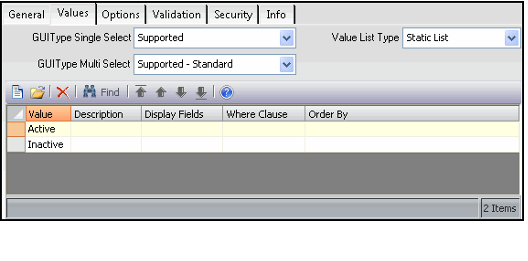
GUIType Single Select
The GUIType Single Select option specifies that a user is normally expected to provide a single value for the attribute. Available options are Supported or Not Supported. When set to Supported, the field on the entity's generated form is a drop-down list that displays the available values. See Standard Combo Drop-down List and Data Combo Drop-down List for details.
GUIType Multi Select
The GUIType Multi Select option allows the user to use the Multiple Selection dialog to select multiple values for this field for filter statements that use the In List operator in the Filters dialog. The values that the user can select depend upon the field's Value List Type and Values records.
Available options are Not Supported, Supported - Standard, and Supported - Custom. When set to Supported - Standard, the user can open a selection dialog to specify multiple values for an In List filter. When set to Not Supported, the selection dialog is not available. Note that the Supported - Custom option is currently not implemented.
List Type
This attribute specifies how available values are selected for the field. There are three methods of classifying values for selection: Static List, SQL Statement, and Entity List.
- Static List: When this option is selected, an administrator manually enters one or more values in the Values sub-type list (by creating a Values record for each value; see About the Values Form). Also, see Standard Combo Drop-down List.
- SQL Statement: When this option is selected, an administrator enters a SQL Statement in the Values field of a Values record (see Values Form) to define the list of records and the associated fields that appear in the selection list (both in a data combo drop-down field on a form and in a multiple selection dialog, depending on the configuration of the GUI Type Single Select and GUI Type Multi Select options). When selecting this option, you may also need to specify the Linked Entity and Linked Field in the Fields record's Top Area. See Data Combo Drop-down List.
- Entity List: An entity list is a register of values that originates from a list populated with values from another entity. If this option is selected, all of the information within the Entity Link display information section of the associated Values records must be populated (see About the Values Form).
Virtual Field Tab
A Virtual Field tab appears on the Fields form when the In Table option is cleared. This tab allows the administrator to define how the virtual field is derived from the database.
Virtual Field Type
Indicates the type of virtual field. Options are:
- None: Selected by default. This value is the default used for fields that are not virtual fields. Virtual fields should never be set to this type.
- Manual: User must manually modify the Base View for the entity as necessary to accommodate this field.
- Joined: The virtual field displays a value from a field defined in a joined table. See Joined Virtual Field for information on how to create a Joined Virtual Field.
- Calculated: Indicates that the virtual field is calculated from other values, including values from fields in other entities. The information is not stored in the database table but the relevant information is added to the entity's Base View.
- Computed: Indicates that the virtual field is calculated from other values within the same table. Unlike a Calculated field, which is calculated within an entity's Base View, a Computed field is calculated at entity's primary database table. Note that a Computed field is not a physical field in the table even the Computed field appears in the table details when viewed using SQL Server Management Studio. You cannot create a constraint or an index for a computed field. (Aptify does not create Persisted computed columns.) Also, if you are adding a Computed field to an entity that has multiple base tables, the computed field and all of the fields that are referenced in its calculation must be in the entity's primary base table.
See Calculated/Computed Virtual Fields for information on how to set up Calculated and Computed fields. Also, refer to Microsoft SQL Server Books Online (https://technet.microsoft.com/en-us/library/ms130214(v=sql.105).aspx) for more information on Computed Columns and their requirements.
Joined Entity
The Joined Entity field is only available when Virtual Field Type is set to Joined. This field stores the name of the entity where the field holding the data for the virtual field is located.
Joined Field
The Joined Field field is only available when Virtual Field Type is set to Joined. The list displays all fields in the entity selected in the Joined Entity field. The field selected indicates that this is the field in the joined entity that virtual field should display.
Foreign Key
The Foreign Key field is only available when Virtual Field Type is set to Joined. The Foreign Key is the field within the current entity that links to the primary key of the Joined Entity.
Join Type
The Join Type field is only available when Virtual Field Type is set to Joined. The value selected in this field determines the type of join. Options available are:
-
Optional: Selected by default. Join Type should be set to Optional only if the Entity Field identified by the Foreign Key value can be NULL (is not required).
Optional Join Types create Left Outer Joins in the Base View between the current and Joined Entities.
-
Required: Join Type should be set to Required if the Entity Field identified by the Foreign Key value is required, and that field always contains a value that links to a record in the Joined Entity.
Required Join Types create Inner Joins in the Base View between the current and Joined Entities and prevent all records that do not have corresponding records in the Joined Entity from being displayed in views.
Calculated/Computed Field
The Calculated/Computed Field stores a valid transact-SQL expression that is used to derive the value for the virtual field. This expression may include mathematical or string operations. If you want to add a subquery to one or more fields within another entity, use a Calculated field (Computed fields can only include fields from its table).
When Virtual Field Type is set to Calculated, the text in the Calculated Field appears in the SELECT section of the base view once the entity is saved. When Virtual Field Type is set to Computed, the text in the Computed Field is stored in the field's specified base table.
If you are adding a Computed field to an entity that has multiple base tables, the Computed field and all of the fields that are referenced in its calculation must be in the entity's primary base table. Refer to Microsoft SQL Server Books Online (https://technet.microsoft.com/en-us/library/ms130214(v=sql.105).aspx) for more information on Computed Columns and their requirements.
About the Filter Relationships Form
Filter Relationship—One-To-Many
An entity level relationship is established when a simple join between two entities is performed. All that is required is the Related Entity field, which displays the entity to link to the current entity, and the Related Field field, which displays the field that is related to the ID field of the current entity. For example, a dashboard may have many areas; this is a one-to-many filter relationship between the Dashboards and Dashboard Areas services.
Filter Relationship—Many-To-Many
In some cases, a view is necessary to properly express the relationship between two entities. This is most common when working with many-to-many relationships. When a view level relationship is needed, the Join Table and Join Field parameters are required in addition to the Related Entity and Related Field fields. The Related Entity is still the entity used for filtering, but the Related Field now refers to a field in the view (specified in the Join Table box) that relates to the base entity. The Join Field is used to specify the field in the view (Join Table) that relates to the ID of the Related Entity.
Filter Relationships records may only be created from the Filter Relationships sub-tab of the Configuration tab on an Entities record.
Related Entity
The name of the related entity.
Related Field (Required)
The name of the related field. The list fills automatically with all fields in the entity selected in the Related Entity field.
Relationship Type (Required)
The type of field relationship. Available options are Many-To-Many and One-To-Many. The default is One-To-Many.
Join Table
The name of the joining view for view-based filter relationships. This field is only applicable if Relationship Type is set to Many-to-Many.
Join Field
The name of the joining field within the view that is used for view-based filter relationships. This field is only applicable if Relationship Type is set to Many-to-Many.
Result Constraint
The default behavior of the filter relationship is to show only the fields that match the criteria specified. If this option is selected, the behavior is changed to show only that fields that do not match the specified criteria. By default, this option is not selected.
Short Description
A description that appears along with the Related Entity name in the Service selection drop-down list in the Filters dialog.
Description
A description that entails how the current entity is related to another entity.
About the Indexes Form
Indexes records describe composite indexes, and may only be created from the Indexes tab of an Entities record.
Name (Required)
The name of the composite index.
SQL (Required)
The SQL statement that defines the composite index.
About the Plug Ins Form
An organization can configure an entity to use a specially designed form or functionality. To implement this specialized behavior, a developer creates a .NET assembly that defines the entity's extended functionality. These assemblies are then stored in the Object Repository and are added to the entity on the Plug-Ins tab using the Plug Ins record.
Plug Ins records may only be created from the Plug-Ins tab of an Entities record.
Plug In Type (Required)
This field identifies the type of plug in specified in this record. See Adding Plug-Ins to an Entity for more information on plug-in types. While some entities have entity-specific plug-in types, the following types are global and are available for all entities:
|
ID |
Name |
Purpose |
|
1 |
Viewer |
Alternate data form. |
|
2 |
Entity |
Alternate data object. |
|
3 |
Duplicate Check |
Specialized duplicate checking -procedure. |
|
4 |
Extension |
Alternate context menu. |
|
5 |
Verification |
Specialized record verification -process. |
|
6 |
Find |
Alternate Find dialog. |
|
7 |
Merge |
Specialized record merging -process. |
Object Name
The name of the file in the Object Repository that contains the plug-in information.
Assembly Name
The name of the .NET assembly that contains the plug-in.
Class Name
The name of the class that implements the plug-in.
About the Required Entities Form
Required entities enforce entity integrity for layout of database schema. Required Entities records may only be created from the Required Entities sub-tab of the Configuration tab on an Entities record.
Entity
Name of the dependent entity.
Description
Description of the dependent entity.
About the Required Objects Form
Required objects are Aptify repository objects required for a certain entity.
Required Objects records may only be created from the Required objects sub-tab of the Configuration tab of an Entities record.
Repository Object (Required)
The Aptify repository object that is required for the entity.
Description
The description of the required repository object.
About the Reports Form
Reports are an integral aspect of an entity, as reports are based on views within that entity. Every report needs to be tied to an entity. In turn, when the Report wizard is run against a view, only those reports that are tied to the viewed entity are available for selection.
Reports records may only be created from the Reports tab of an Entities record.
Name (Required)
Name of the report.
Display Name Culture String
If you want to localize the name of the report on a user-by-user basis (based on a user's assigned Culture), specify a Culture Strings record in this field. See Working with Culture Strings for details.
Description
Description of the report.
Description Text Culture String
If you want to localize the description of the report on a user-by-user basis (based on a user's assigned Culture), specify a Culture Strings record in this field. See Working with Culture Strings for details.
Category ID
The report's category. This field links to the Report Categories service. If blank, then the report appears under the Report wizard's General tab when run from a view for this service. If a category is specified, then the report appears under the category's tab within the Report wizard.
Object (Required)
In this field, specify the report's file name and its location within the Aptify Object Repository.
Type
The type of result set that drives the report's results: Active Data Driver (1), List (2), Standard (3), Custom Report (4). All Crystal Reports must be List-based; therefore, select List (2) in this field if adding a Crystal Report.
Location
This field is reserved for future use.
OLEProgID
If the object that implements this report is a COM DLL, enter the name of the class that implements this report. Note that this field is only valid if the Custom Report option is specified in the Type field.
Assembly
If the object that implements this report is a .NET assembly, then enter the name of the assembly in this field. Note that this field is only valid if the Custom Report option is specified in the Type field.
Class Name
If the object that implements this report is a .NET assembly, enter the name of the assembly class that implements this report. Note that this field is only valid if the Custom Report option is specified in the Type field.
About the Values Form
Values records specify a set of value options for a particular field. For example, it may be useful to specify a list of values for a State field. This list of values may include some or all states and is used in other parts of the system to automate various data entry tasks as well as the process of creating views.
Note that the Display Fields, Where Clause, and Order By fields on this form are applicable only when Value List Type is set to Entity List to populate a multiple selection dialog in a view's Filter. The logic stored in these three fields specifies the information that appears in the Filter's multiple selection dialog when the Filter's operator is set to In List.
Values records may only be created from the Values tab of the Fields form.
Value (Required)
The text of the value. If you set Value List Type to SQL Statement, enter the SQL statement that defines the records and fields to display in this field. For Entity List types, enter the name of the related entity in the Value field.
Value Culture String ID
If you want to localize the name of the value on a user-by-user basis (based on a user's assigned Culture), specify a Culture Strings record in this field. See Working with Culture Strings for details.
Description
A description of the value.
Description Culture String ID
If you want to localize the value's description on a user-by-user basis (based on a user's assigned Culture), specify a Culture Strings record in this field. See Working with Culture Strings for details.
Display Fields
Used along with the Where Clause and Order By fields to create a SQL statement to populate the contents of a multiple selection dialog, when Value List Type is set to Entity List. The Display Fields field holds a comma-delimited list of the field names to be displayed. The syntax follows the standards of text for the SELECT portion of a standard SQL statement.
Where Clause
Used along with the Display Fields and Order By fields to create a SQL statement to populate the contents of a multiple selection dialog, when Value List Type is set to Entity List. This field contains any additional logic, following the syntax of the WHERE portion of a standard SQL statement.
Order By
Used along with the Display Fields and Where Clause fields to create a SQL statement to populate the contents of a multiple selection dialog, when Value List Type is set to Entity List. This field details the order where the data retrieved is displayed. It follows the syntax of the ORDER BY portion in a standard SQL statement.
Comments
Please sign in to leave a comment.