
The Entity Bulk Operations service allows an organization to update specific data in multiple records without requiring a user to modify each record manually.
Each Entity Bulk Operations applies to records in only one Aptify entity. Once an entity has one or more bulk operations associated with it, an Entity Bulk Operation wizard icon appears in the toolbar for views of that entity.
When a user launches the Entity Bulk Operation wizard from a view, the bulk operation business logic operates on a per-record basis, which means that the bulk operation function is called once for each record selected in the view. The wizard updates specific fields in each record based on the rules defined in the corresponding Entity Bulk Operations record.
The Entity Bulk Operations wizard is supported for use in List, Prompt, and Chart Drilldown views for the Aptify Desktop client. This wizard is supported in the Aptify web interface.
An administrator specifies the following information in each Entity Bulk Operations record:
- Entity to which the operation applies.
- A set of rules or a custom component that defines the operation.
- Security settings to define who can run the operation.
The rule-based bulk operations are most commonly used and allow an administrator to easily define rules that modify top-level entity information within each entity record in the target view the bulk operation is running on. However, in some cases, rules are not robust enough to capture the changes or other business logic needed in a bulk operation. For this reason, Aptify provides an interface through which each customer may link their own components for bulk operation logic.
For component-based operations, rather than using the standard bulk operation rule interpreter (IEntityBulkOperation), the object defined in the Object field is called, which then implements the business logic needed for each record.
See the following sub-topics for more information on creating and using Entity Bulk Operations:
- Configuring Entity Bulk Operations
- Defining Rules for Entity Bulk Operations
- Selecting a Component for Entity Bulk Operations
- Assigning Permissions for Entity Bulk Operations
- Executing the Entity Bulk Operation Wizard
- About the Entity Bulk Operation Entity Attributes
- About the Entity Bulk Operations Form
Configuring Entity Bulk Operations
An administrator can configure an Entity Bulk Operation based on logic defined either by Bulk Operation Rules records or by linking the operation to a .NET component.
The following steps describe the initial configuration of an Entity Bulk Operations record:
- Open a new record from the Entity Bulk Operations service.
- Enter a Name for the entity bulk operation.
- This name displays in the list of available operations when the user runs the Entity Bulk Operations wizard.
- Enter the entity on which the bulk operation should run in the Entity field.
- Select the type of entity bulk operation in the Type field:
- Rule: The logic for the entity bulk operation will be defined through Bulk Operation Records configured from the Rules tab.
-
Component: The logic for the entity bulk operation will be defined by selecting a .NET component.
- Specify whether the bulk operation should run as a single transaction or as multiple transactions.
- When Run As Single Transaction is selected, the Entity Bulk Operation wizard updates all the selected records in one SQL transaction. If any of the records fail to update, all records processed up to that point roll back to their original version.
-
When Run As Single Transaction is cleared, each record processes as its own transaction, and only the records that fail roll back. If the bulk operation is run on a large number of records in a view, the system locks the records and other users may be blocked as a result. This option is not recommended if the bulk operation is set to update records with dependencies.
Create Audit List is reserved for future use.
- If you want to limit the bulk operation to specific users and/or groups, clear the Allow Everyone to Run option.
- When Allow Everyone to Run is cleared, the Group Permissions and User Permissions tab become available.
- Click the Details tab and enter additional information about the bulk operation in the Comments field (optional).
- Note that you can enter text in the Help Text field for tracking purposes, but additional functionality associated with this field is not currently implemented.
- Save the Entity Bulk Operations record.
- Once the record has been saved, the Rules tab becomes available.
- Continue the configuration of the Entity Bulk Operations record by:
- Defining rules (applicable if Type is set to Rule). See Defining Rules for Entity Bulk Operations.
- Selecting the .NET component that the Entity Bulk Operation should use (applicable if Type is set to Component). See Selecting a Component for Entity Bulk Operations.
- Defining security permissions (only applicable if the Allow Everyone to Run option is cleared). See Assigning Permissions for Entity Bulk Operations.
Defining Rules for Entity Bulk Operations
By default, the Type field on the General tab of the Entity Bulk Operations record is set to Rule. This indicates that the logic for the entity bulk operation is based on the rules defined on the Rules tab of that Entity Bulk Operations record.
Each Rules record applies to a field in an Entities record. The Rules tab is only available once the Entity Bulk Operations record has been saved for the first time.
This topic contains sub-topics that describe how to create a rule for a field in a top-level entity and how to create a rule for a field in a sub-type entity:
- Creating an Entity Bulk Operation Rule for Top-Level Entity Field
- Creating an Entity Bulk Operation Rule for Sub-Type Entity Field
Creating an Entity Bulk Operation Rule for Top-Level Entity Field
Follow these steps to create a rule that modifies the value of a field in the top-level entity you specified on the Entity Bulk Operation's General tab.
- Click the Rules tab on an Entity Bulk Operations record.
- Open a new Rules record from the Rules tab of the Entity Bulk Operations record.
- Select a field from the Field Name drop-down list.
- This list displays all field names from the Entity selected on the General tab of the Entity Bulk Operations record.
- Enter a description of the rule in the Comments field (optional).
- Leave Type set to Top Level.
- Select the Value Type from the list:
- Static: With this option, which is selected by default, the bulk operation updates the selected field to use the value specified in the Value field.
- Prompt: With this option, the Entity Bulk Operation wizard prompts the user to enter a new value for the selected field. The bulk operation updates the records to use the specified value.
- Formula: With this option, the bulk operation runs a specified SQL statement to obtain a new value for the selected field.
- Configure the rule's value and related fields, depending on the Value Type you selected:
-
Static: Enter a static value in the Value field.
- Prompt: Enter a default value to use for this entity field (optional) in the Default Value field and a user message in the Prompt Message field.
-
Formula: Enter a SQL statement that defines a new value for the specified entity field in the Formula field.
-
For example, if you want to increase a company's current credit limit by $500, use this formula:
CONVERT(int, CreditLimit + 500)
The Entity Bulk Operation code takes this formula and updates the CreditLimit field in all records in the view.
-
-
Static: Enter a static value in the Value field.
- Click OK to save and close the Rules record.
- Add additional rules as needed for the entity bulk operation.
- Alternatively, you can click OK and New in Step 8 to save the current record and open a new Rules record in one step.
- Save the Entity Bulk Operations record.
Creating an Entity Bulk Operation Rule for Sub-Type Entity Field
You can create entity bulk operations that modify field values for sub-type data. For example, if you want to specify an End Date for a specific set of PersonFunctions sub-type records, you can create a rule-based Entity Bulk Operation for the Persons entity that modifies the relevant PersonFunctions sub-type records.
Follow these steps to create a rule that changes the value of a field in a sub-type entity for the entity you specified on the Entity Bulk Operation's General tab:
- Click the Rules tab on an Entity Bulk Operations record.
- Open a new Rules record from the Rules tab of the Entity Bulk Operations record.
- Set Type to Sub Type.
- The Sub Type Name and Sub Type Filter fields appear automatically at the bottom of the form.
- Enter the name of the sub-type entity in the Sub Type Name field.
- This should be a sub-type of the entity you specified in the Entity field on the Entity Bulk Operations record's General tab.
- Once the Sub Type Name field is populated, the set of fields from that sub-type entity automatically populate the Field Name drop-down list.
- Select a field from the Field Name drop-down list.
- Enter a description of the rule in the Comments field (optional).
- Select the Value Type from the list:
- Static: With this option, which is selected by default, the bulk operation updates the selected field to use the value specified in the Value field.
- Prompt: With this option, the Entity Bulk Operation wizard prompts the user to enter a new value for the selected field. The bulk operation updates the records to use the specified value.
- Formula: With this option, the bulk operation runs a specified SQL statement to obtain a new value for the selected field.
- Configure the rule's value and related fields, depending on the Value Type you selected:
- Static: Enter a static value in the Value field.
- Prompt: Enter a default value to use for this entity field (optional) in the Default Value field and a user message in the Prompt Message field.
- Formula: Enter a SQL statement that defines a new value for the specified entity field in the Formula field.
- If needed, specify a valid WHERE clause in the Sub Type Filter field to target the value change to a specific set of sub-type records.
- Do not enter the word WHERE in the filter statement. The system appends this keyword automatically.
- In the example below, the rule only modifies PersonFunctions sub-type records where the FunctionID is 8.
- Click OK to save and close the Rules record.
- Add additional rules as needed for the entity bulk operation.
- Alternatively, you can click OK and New in Step 10 to save the current record and open a new Rules record in one step.
- Save the Entity Bulk Operations record.
Selecting a Component for Entity Bulk Operations
Entity Bulk Operations may use a component to implement the required logic instead of rules. A developer needs to create the component with desired functionality in Visual Studio .NET and then add the compiled object to Aptify's Object Repository. Here is an overview of the process for creating new Entity Bulk Operation components:
- The organization defines the actions required of the Entity Bulk Operation.
- A developer writes and compiles an object in Visual Studio .NET that performs the required actions.
- The object needs to implement Aptify's standard IEntityBulkOperation interface. See the Aptify Software Development Kit (SDK) for more information on this interface.
- A developer or administrator adds the bulk operation object to the Aptify Object Repository.
- A developer or administrator creates an Entity Bulk Operations record, as described in Configuring Entity Bulk Operations and configures it to use the new component.
Follow these steps to create a component-based Entity Bulk Operations record:
- On the Entity Bulk Operations record's General tab, select Component from the Type drop-down menu.
- The Component-related fields become available.
- Enter the component's Object Repository location in the Object field.
- Click the plus (+) sign icon to browse for the object's repository location.
- Enter the object's assembly name in the Assembly field.
-
Enter the name of the class that defines the functionality for the operation in the Class field.
The Icon and Icon Small fields are reserved for future use.
- Save the Entity Bulk Operations record.
Assigning Permissions for Entity Bulk Operations
By default, Entity Bulk Operations are accessible to all users and all groups that have been granted permission by the system administrator to the entity on which the bulk operation is based. If further restrictions are necessary, you can configure security permissions for entity bulk operations as described below.
- Configuring Entity Bulk Operation Permissions for Groups
- Configuring Entity Bulk Operation Permissions for Users
Configuring Entity Bulk Operation Permissions for Groups
The purpose of this topic is to describe how to configure the group permissions for Entity Bulk Operations. To do this, perform the following steps:
- On the General tab of an Entity Bulk Operations record, clear the Allow Everyone to Run option.
- When this option is cleared, the Groups Permissions and User Permissions tabs become available.
- Click the Group Permissions tab and open a new Group Permissions sub-type record.
- Select the group from the Group drop-down list.
- Enter additional information in the Comments field (optional).
- Click OK to save and close the Bulk Operations Group Permissions record.
- Save the Entity Bulk Operations record.
- Add additional groups as needed.
- Alternatively, you can click OK and New in Step 5 to save the current record and open a new Group Permissions record in one step.
Configuring Entity Bulk Operation Permissions for Users
The purpose of this topic is to describe how to configure the user permissions for Entity Bulk Operations. To do this, perform the following steps:
- On the General tab of an Entity Bulk Operations record, clear the Allow Everyone to Run option (if not already cleared).
- When this option is cleared, the Groups Permissions and User Permissions tabs become available.
- Click the User Permissions tab and open a new User Permissions sub-type record.
- Enter a user in the User field. This field links to the Users service.
- Enter additional information in the Comments field (optional).
- Click OK to save and close the Bulk Operations User Permissions record.
- Save the Entity Bulk Operations record.
- Add additional users as needed.
- Alternatively, you can click OK and New in Step 5 to save the current record and open a new User Permissions record in one step.
Executing the Entity Bulk Operation Wizard
Users can execute an Entity Bulk Operation wizard from a view of the service that is defined in the Entity field on the Entity Bulk Operations record.
Follow these steps to run an Entity Bulk Operation, broken down by interface:
Aptify Web Interface
-
Create a view of the entity linked to the bulk operation.
The wizard is supported for use in List, Prompt, and Chart Drilldown views.
- Select the records to which you want to apply the bulk operation.
- To run the operation for all records in the view, do not select any records. If you select one or more records, the operation will run for only those selected records.
- In the More pull-down menu, select Entity Bulk Operations Wizard to launch the wizard.
- Click Next to begin the wizard.
- Select the bulk operation you want to run and click Next.
- You can select from multiple bulk operations if the entity has more than one bulk operation associated with it.
- You can select from multiple bulk operations if the entity has more than one bulk operation associated with it.
- If any of the rules were configured with Value Type set to Prompt, review the prompted message text and enter the value that the bulk operation should use for the rule. Click Next to continue.
- Click Finish to execute the bulk operation.
- After the bulk operation executes, the wizard prompts to run another bulk operation on the same set of data.
- Click Yes and the wizard returns to the bulk operation selection screen. Follow the wizard prompts as before to complete the operation.
- Click No to close the Entity Bulk Operations wizard.
Aptify Desktop Client
-
Create a view of the entity linked to the bulk operation.
The wizard is supported for use in List, Prompt, and Chart Drilldown views.
- Select the records to which you want to apply the bulk operation.
- To run the operation for all records in the view, do not select any records. If you select one or more records, the operation will run for only those selected records.
- Click the Entity Bulk Operations Wizard icon in the view toolbar to launch the wizard.
- Click Next to begin the wizard.
- Select the bulk operation you want to run and click Next.
- You can select from multiple bulk operations if the entity has more than one bulk operation associated with it.
- You can select from multiple bulk operations if the entity has more than one bulk operation associated with it.
- If any of the rules were configured with Value Type set to Prompt, review the prompted message text and enter the value that the bulk operation should use for the rule. Click Next to continue.
- Click Finish to execute the bulk operation.
- After the bulk operation executes, the wizard prompts to run another bulk operation on the same set of data.
- Click Yes and the wizard returns to the bulk operation selection screen. Follow the wizard prompts as before to complete the operation.
- Click No to close the Entity Bulk Operations wizard.
About the Entity Bulk Operation Entity Attributes
The Entity Bulk Operations entity includes the following seven (7) attributes that define the behavior of the entity bulk operation functionality.
In general, clients will not want to modify these attributes; this information is provided for reference purposes only. These attributes can be found on the Entity Bulk Operations Entities record's Configuration > Attributes sub-tab.
- ProcessClass: This attribute specifies the class that -implements the -IEntityBulkOperationProcessor interface, which is the functionality that controls how the system executes a batch of Entity Bulk Operations. By default, this is Aptify's standard EntityBulkOperationProcess class. See the Aptify Software Development Kit (SDK) for more information on these items.
- StandardRecordClass: This attribute specifies the standard EntityBulkOperation class that -implements the IEntityBulkOperation interface. For rule-based Entity Bulk Operations, the system uses this class to execute an operation on a particular record. For Component-based Entity Bulk Operations, the system does not use this class; instead, it uses the class specified on the Entity Bulk Operations record. See the Aptify SDK for more information on the EntityBulkOperation class and the IEntityBulkOperation interface.
- WizardClass: This attribute specifies the class for the standard Entity Bulk Operation Wizard object. See the Aptify SDK for more information on the EntityBulkOperationsWizardForm class.
- StandardRecordAssembly: This attribute specifies the assembly name for the object that includes the class specified in the StandardRecordClass attribute.
- ProcessAssembly: This attribute specifies the assembly name for the object that includes the class specified in the ProcessClass attribute.
- WizardAssembly: This attribute specifies the assembly name for the object that includes the class specified in the WizardClass attribute.
-
WizardIcon: The value of this attribute specifies the Object Repository location of the icon to use for the Entity Bulk Operations wizard in a view toolbar. The format for this value is Package Name.Object Name.
-
SupportsPacking: When set to 1, the entity appears in the Data Packer. When not specified, an entity does not support data packing.
The Entity Bulk Operations wizard is supported for use in List, Prompt, and Chart Drilldown views.
The Entity Bulk Operations form defines the bulk operations (such as mass updates to data) configured for entities.
General Tab
Name (Required)
The Name field holds the name of the Entity Bulk Operation.
Description
The Description field stores the description of the Entity Bulk Operation.
Entity (Required)
The bulk operation defined in this record runs against the entity chosen in this field. For example, if the Dashboards entity is selected in this field, the Bulk Operation Wizard icon appears in the display window toolbar of the Dashboards service.
Type (Required)
An Entity Bulk Operation can have one of the following types:
- Rule: The Entity Bulk Operation follows a set of rules defined in the Rules tab in the Entity Bulk Operation record. Each rule applies to a field in the specified Entity.
- Component: The Entity Bulk Operation uses logic contained in a specified component to perform the updates to the Entity record(s). This is used when the business logic is too complex to be expressed as a standard rule.
Run As Single Transaction (Required)
If this option is selected, all the records in the view update in one SQL transaction. If any of the records fail to update, all records processed up to that point roll back to their original version.
If this option is not selected, each record processes as its own transaction, and only the records that fail roll back. If the bulk operation is run on a large number of records in a view, the system locks the records and other users may be blocked as a result. This option is not recommended if the bulk operation is set to update records with dependencies.
Create Audit List (Required)
If this option is selected, the Entity Bulk Operation writes the update information to a System Lists record. This feature is reserved for future use.
Allow Everyone To Run (Required)
If this option is selected, permission to run the given operation is granted to all users and all groups, and the Group Permissions and User Permissions tabs are disabled.
Object
The location of the bulk operation component in the Aptify Object Repository. This field is only available if the Type is set to Component. See Selecting a Component for information on how to create a component for an Entity Bulk Operation.
Assembly
The .NET assembly name of the object specified in the Component field. This field is only available if the Type is set to Component.
Class
The class in the specified component that contains the bulk operation logic to perform. This field is only available if the Type is set to Component.
Icon
The icon file in the Aptify Object repository for the object in the Object field. This field is reserved for future use. Note that it is only available if the Type is set to Component.
Icon Small
The small icon file in the Aptify Object repository for the object in the Object field. This field is reserved for future use. Note that it is only available if the Type is set to Component.
Rules Tab
The Rules tab lists all Rules that apply to this entity bulk operation. Each Rules record applies to a single field in the Entities record, and multiple rules may be configured for each entity bulk operation. This tab is only applicable if the Type is set to Rule.
Rules records define the rules for entity bulk operations. Each Rules record applies to a single field in the entity on which the bulk operation is based. For example, a rule may be created to update the credit status or limit for certain persons, or to update the area code for all persons in a certain region.
The Field Name field stores the name of the field on which the bulk operation rule applies. This field is a list of all fields for the entity the bulk operation is created for (if Type is set to Top Level).
If Type is set to Sub Type, then the system populates this drop-down list automatically using the fields from the sub-type that the user enters in the Sub Type Name field.
Comments
The comments field contains any additional details relevant to this Bulk Operation Rules record.
Type
Type indicates the type of record to be updated in the system.
- Top Level: Top Level bulk operations are created to update records stored in entities which are also services; for example, Persons, Orders, or Companies records.
- Sub Type: Sub Type bulk operations update record in entities which may only be accessed through other services. Prices records on the Products service is one example of a sub type. The Functions tab on a Persons record is another example.
Note that if you select the Sub Type option, the Sub Type Name and Sub Type Filter fields appear automatically at the bottom of the form.
Value Type
There are three value types available:
-
Static: If Static is selected, a Value field appears in the Rules record. The field listed in the Field Name is updated with the value in the Value field for all selected records in the given view.
-
Prompt: If Prompt is selected, the Default Value and Prompt Message fields appear in the Rules record. When the user runs the Entity Bulk Operation wizard, one of the steps in the Wizard prompts the user to enter values for all of the rules that have a Value Type of Prompt.
-
Formula: If Formula is selected, a Formula field appear in the Rules record. The Formula field is a SQL string that the Entity Bulk Operation evaluates. The operation inserts the results of the formula into the entity field selected in Field Name.
- For example, an Entity Bulk Operation to increase all Persons' Credit Limits by $500 (regardless of their current credit limits) has this formula: CONVERT(int, CreditLimit + 500)
- The Entity Bulk Operation code takes this formula and updates the CreditLimit field in the records selected within a view.
Sub Type Name
If Type is set to Sub Type, then this field appears on the Rules form. It specifies the name of the sub-type entity that contains the field to modify. This should be a sub-type of the entity specified in the Entity field on the Entity Bulk Operations record's General tab.
Note that once the Sub Type Name field is populated, the set of fields from that sub-type entity automatically populate the Field Name drop-down list.
Sub Type Filter
Specifies a WHERE clause that reduces the number of sub-type records in the resultset to modify. Do not enter the word WHERE in the filter statement. The system appends this keyword automatically.
Details Tab
Comments
The comments field contains any additional details relevant to the Entity Bulk Operations record.
Help Text
This feature is reserved for future use.
Group Permissions Tab
The Group Permissions tab contains a list of all Bulk Operation Group Permissions records, which define the groups granted permission to access this entity bulk operation when the Allow Everyone To Run option is not selected.
Bulk Operations Group Permissions records are used to assign groups the ability to run the entity bulk operation. Granting permissions to specific groups prevents users in non-qualified groups from running the bulk operation. By creating a Bulk Operations Group Permissions record for a defined group, each user belonging to that group has permission to run the current entity bulk operation.
Each group must have, at the minimum, read permissions defined on the entity in order to successfully run the bulk operation. For instance, if the bulk operation is defined to run on the Persons service, the group must have at least read and edit permissions for the Persons service. See Granting Entity Permissions to Groups for more information on setting permission attributes for users or groups. Additionally, the group must also have at least read permissions for the Bulk Operations Entity.
Bulk Operations Group Permissions records are only available from the Group Permissions tab of an Entity Bulk Operations record.
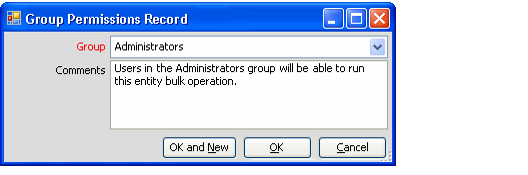
Group
The group to which permissions have been granted. This field is a list of all groups defined in the system.
Comments
Any comments relevant to this Group Permissions record
User Permissions Tab
The User Permissions tab contains a list of all Bulk Operation User Permissions records, which define the users who can execute this bulk operation when the Allow Everyone To Run option is not selected.
Bulk Operations User Permissions records allow the administrator to grant permissions to run the bulk operation to specific users configured in the Aptify system, without granting those permissions to any other users who might be members of the same groups. By creating a Bulk Operations User Permissions record for a defined user, this user is given permission to run the current Entity Bulk Operation.
Each user must have, at the minimum, read permissions defined on the entity to successfully run the bulk operation. For instance, if the bulk operation is defined to run on the Persons service, the user must have at least, read and edit permissions for the Persons service. See Granting Entity Permissions to Users for more information on setting permission attributes for users. Additionally, the user must also have at least read permissions for the Bulk Operations Entity.
Bulk Operations User Permissions records are only available from the User Permissions tab of an Entity Bulk Operations record.
User
The user to which permissions have been granted. This field links to the Users service.
Comments
Any comments relevant to the user permissions granted.
Attachments Tab
The Attachments tab lists any files relevant to the Entity Bulk Operations record.
Comments
Please sign in to leave a comment.